The Kernel: Why Run Order Matters
A notebook's kernel remembers every name its cells made, in the order they ran rather than the order on the page, so a cell run twice or a deleted cell's variable gives answers the file can't reproduce; execution counts show the real order, Restart and Run All gives the file's true answers, the Variables view lists what the kernel remembers, and Interrupt stops a cell that runs too long.
Apprentice · Python · Updated
After this lesson you can
- Read a notebook's execution counts, and explain how a cell run twice, or a deleted cell's variable, gives answers the file can't reproduce
- Use Restart and Run All before you trust or share a notebook, check names in the Variables view, and stop a long-running cell with Interrupt
Key takeaways
- The kernel is the notebook's memory. It remembers every name a cell made, in the order the cells ran, not the order they sit on the page.
- The number beside a cell is its execution count, so [4] means it was the fourth cell run since the kernel started. Counts out of order, or missing, warn you.
- A cell run twice, or a variable whose cell you deleted, can give answers the saved file can't give again.
- Restart and Run All empties the kernel's memory and runs every cell from top to bottom. Do it before you trust a number or share a notebook.
- The Variables view lists what the kernel remembers, and Interrupt stops a cell that runs too long.
You've finished a notebook, the numbers look right, and you send it to someone. They run it from the top and get a different answer, or an error. Nothing in the code changed. What changed is the order the cells ran in, and the notebook's memory kept the difference hidden. This happens to beginners and to professionals, and it's the reason a class, a manager or a reviewer may not trust a notebook that hasn't been run from top to bottom. This lesson shows how it happens and the one habit that prevents it.
The example is Bean Street Coffee, a coffee chain whose owner, Rosa, wants the total of a morning's 12 orders with 8% sales tax added.
The kernel is the notebook's memory
A notebook's kernel is the Python program that runs its cells. It starts when you run the first cell and stays running, remembering every name any cell has made. Here is Rosa's notebook, four code cells, run from top to bottom:
orders = [
    {"drink": "latte", "size": "M", "price": 4.45},
    {"drink": "drip coffee", "size": "L", "price": 3.45},
    {"drink": "cold brew", "size": "S", "price": 3.65},
    {"drink": "latte", "size": "S", "price": 3.95},
    {"drink": "mocha", "size": "M", "price": 4.75},
    {"drink": "drip coffee", "size": "M", "price": 2.95},
    {"drink": "chai", "size": "M", "price": 4.35},
    {"drink": "latte", "size": "L", "price": 4.95},
    {"drink": "tea", "size": "S", "price": 2.15},
    {"drink": "drip coffee", "size": "S", "price": 2.45},
    {"drink": "cold brew", "size": "L", "price": 4.65},
    {"drink": "latte", "size": "M", "price": 4.45},
]
tax_rate = 0.08
total = 0
for order in orders:
    total = total + order["price"]
total
46.2
total = round(total * (1 + tax_rate), 2)
total
49.9
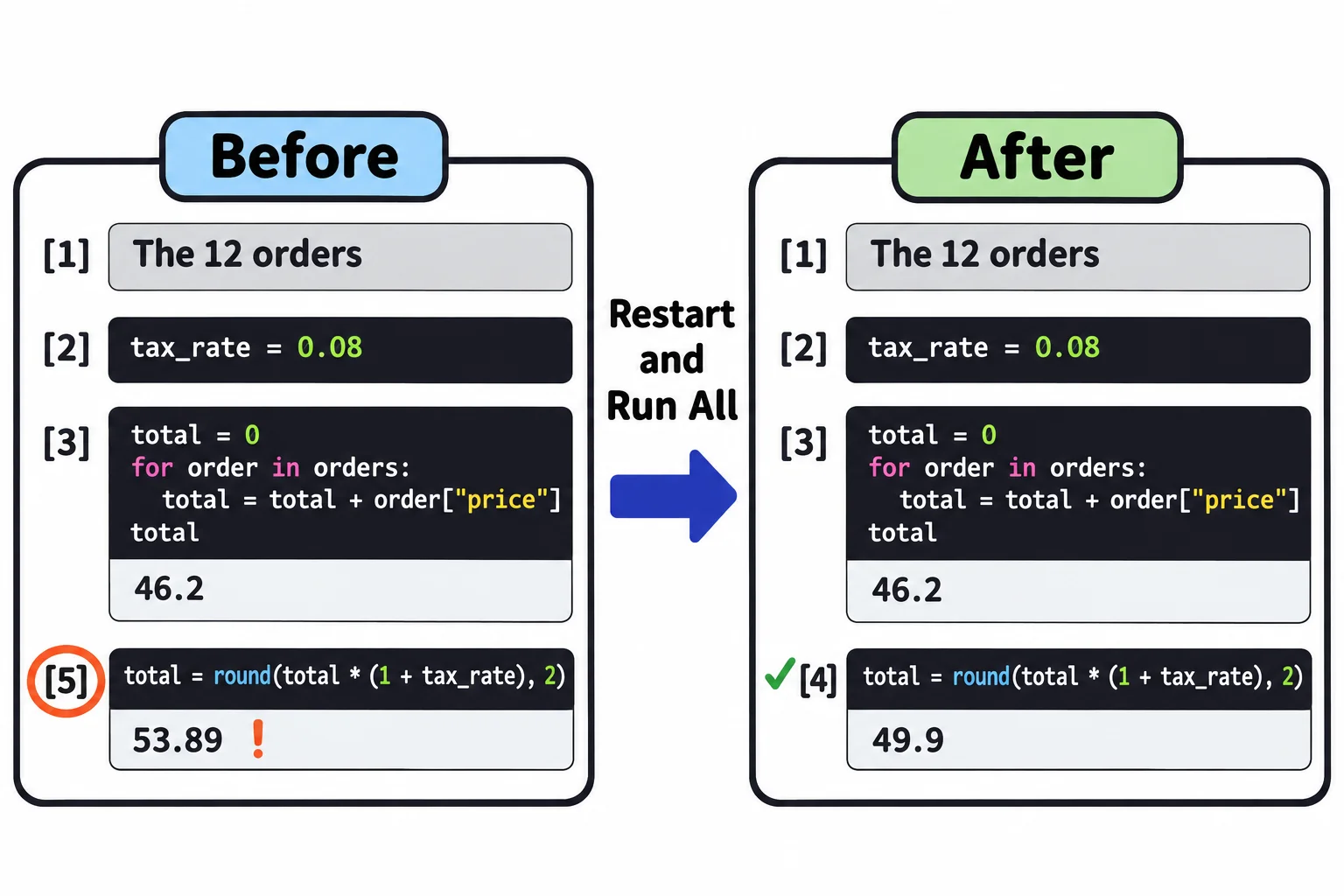
Beside each cell, VS Code shows its execution count: [1], [2], [3], [4]. Read [4] as "this was the fourth cell run since the kernel started". It counts runs, not positions on the page, so it tells you the order things really happened in.
A cell run twice
Now you click the tax cell to read it once more, and press Shift+Enter by habit. It runs again:
53.89
The cell's code didn't change, but total already had tax in it, so it got taxed twice. The page now shows the tax cell with 53.89 and an execution count of [5], and the counts read 1, 2, 3, 5: a gap, and a cell that ran after the cells below it would suggest. That's the warning sign. Anyone who runs this file from the top gets 49.9, not the 53.89 your screen shows.
A deleted cell's variable lives on
Next you tidy up. You delete the tax_rate cell, meaning to type 0.08 straight into the tax cell, and forget. To get back to the right answer, you run the total cell and then the tax cell again: 49.9, and no error. Deleting a cell takes it off the page, not out of the kernel's memory, which still holds tax_rate. Your notebook now works only on your computer, and only until the kernel stops. Someone who opens the saved file and runs it from the top gets this, at the tax cell:
NameError: name 'tax_rate' is not defined
That's the last line of the error. NameError means the code used a name nothing has made yet, here because the cell that made it is gone from the file.
Restart and Run All
One habit catches both problems: Restart and Run All. In the notebook's toolbar, click Restart, which stops the kernel and starts a new one with an empty memory, then Run All, which runs every cell from top to bottom, in page order. Now the notebook gives the answers its file really gives: 49.9, or the NameError that shows a cell is missing. The counts read 1, 2, 3, 4 down the page, the sign of a notebook that runs.
Do it before you trust a number, before you share a notebook, and before you hand in an exercise. It takes seconds on a small notebook, and it's the difference between "it worked on my computer" and "it works".
The Variables view and Interrupt
Two more toolbar buttons help:
- Variables opens a panel listing every name the kernel remembers, with its type and value:
orders(a list of 12),total, andtax_rateeven after its cell is gone. When a result surprises you, look there first. - Interrupt stops a cell that's running too long, such as a loop that never ends or a file far bigger than you expected. The cell stops with a
KeyboardInterrupterror, and the kernel keeps everything else it remembers. If Interrupt doesn't stop it, Restart does.
Check yourself
2 questions to try on the lesson page.
So what
A notebook is only as trustworthy as its last Restart and Run All: the kernel remembers what you did, but the file is what everyone else gets.