VS Code
VS Code is Microsoft's free code editor, a different program from Visual Studio, that you'll use for web pages and grow with extensions.
Novice · Software Development · Updated
After this lesson you can
- Explain how VS Code differs from Visual Studio and what each one is for
- Open a folder in VS Code and find its Explorer, terminal, Command Palette and Extensions view
Key takeaways
- VS Code (Visual Studio Code) is a free code editor for Windows, macOS and Linux. Visual Studio is a different program, a full IDE for C#.
- Open a whole folder in VS Code, with File > Open Folder or code . in the terminal, so the Explorer lists all its files.
- The Explorer lists your files, the editor shows the open ones, and the terminal panel runs commands in the open folder.
- The Command Palette finds any VS Code command by name. Extensions add what VS Code doesn't have built in.
The name confuses almost everyone at first: Microsoft makes two programs called Visual Studio. Visual Studio Code, VS Code for short, is a free code editor, and it's the one you'll use for web pages: HTML, CSS and JavaScript. Visual Studio is a full IDE for C# and .NET. They share most of a name, and very little else.
VS Code is not Visual Studio
| VS Code | Visual Studio | |
|---|---|---|
| What it is | A code editor | An IDE |
| Built for | Any language, through extensions | C# and .NET |
| Runs on | Windows, macOS and Linux | Windows |
| Price | Free, built on open-source code | Free for learning (the Community edition) |
If you're learning C#, you'll use both: Visual Studio for C#, and VS Code for web pages. If you're learning Java, IntelliJ IDEA is your IDE and VS Code is your code editor. You won't need Visual Studio at all.
Open a folder
VS Code works best when you open a whole folder, the one that holds your project, rather than one file. Then the Explorer lists every file in it, the terminal starts in it, and a search looks through all of it. There are two ways:
- From the menus: File > Open Folder, then choose the folder.
- From the terminal: go into the folder with
cd, then typecode .(the.means "the folder I'm in").
The first time you open a folder, VS Code asks whether you trust the authors of its files. For a folder you made yourself, choose Yes, I trust the authors.
Find your way around
| Part | Where | What it's for | Open it with |
|---|---|---|---|
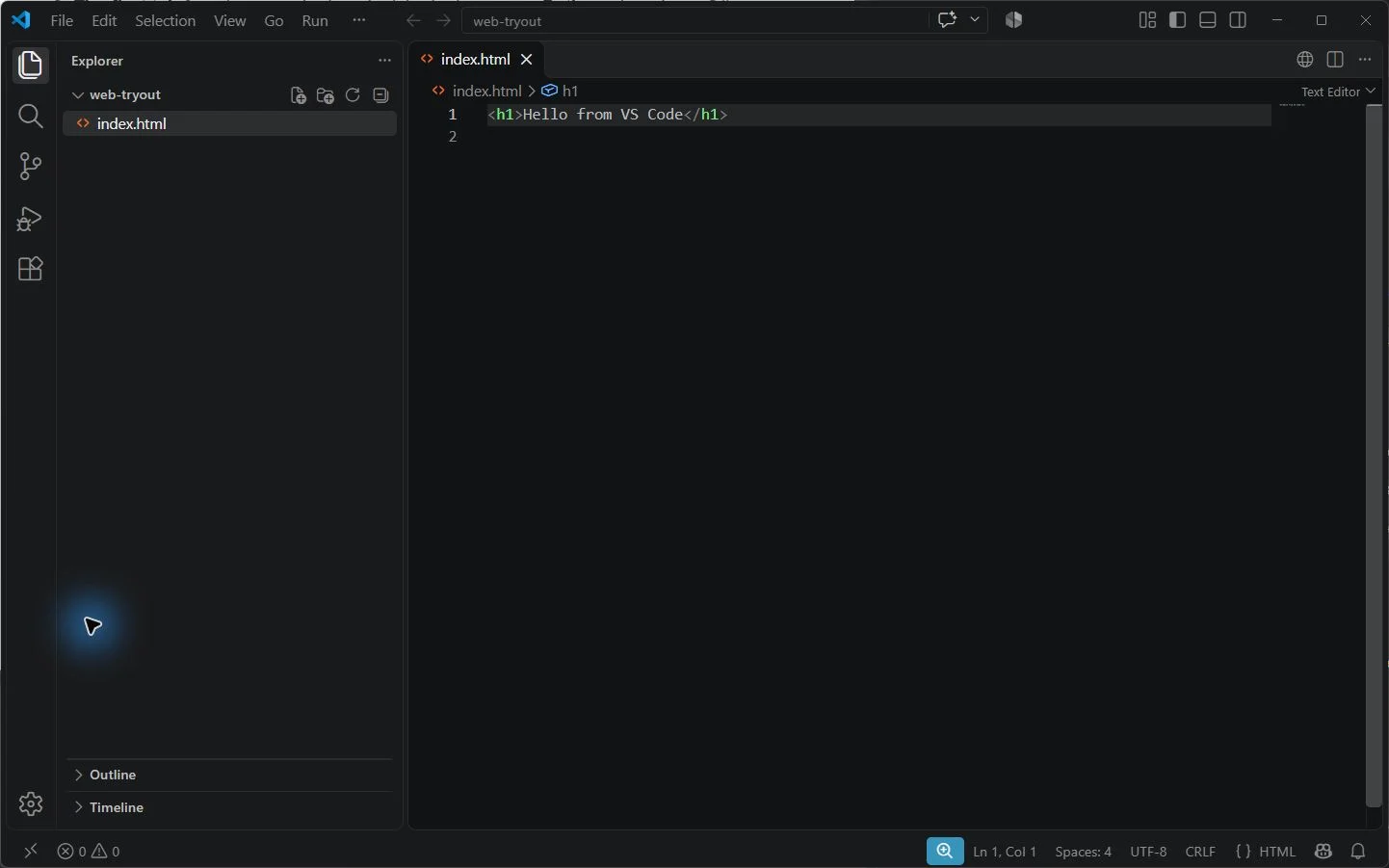
| Explorer | Side bar, on the left | The files and folders in the open folder. Click a file to open it. | Ctrl+Shift+E |
| Editor | Middle | Your open files, one tab each | Click a file in the Explorer |
| Terminal | Panel, at the bottom | A terminal that starts in the open folder | Ctrl+` (the key left of 1) |
| Command Palette | Top | Type the name of any VS Code command instead of hunting through menus | Ctrl+Shift+P or F1 |
| Extensions view | Side bar, on the left | Find and install extensions | Ctrl+Shift+X |
On a Mac, press Cmd where the table says Ctrl, except for the terminal, which is Ctrl+` on both. The column of icons on the far left, the Activity Bar, switches the side bar between the Explorer, Search, Source Control and the Extensions view.
Extensions
VS Code starts small: an editor that knows the basics of many languages. Extensions add the rest, such as support for a language, a tool that tidies your code's layout, or a live preview of a web page. For example, Live Server shows a web page in your browser and reloads it every time you save.
To add one, open the Extensions view, search for it by name, check the publisher's name under it, and click Install. Anyone can publish an extension, so install the one from the publisher you expect.
VS Code sometimes offers extensions when you open a new kind of file. You can say no: the lessons tell you which ones to add, and when.
Try it. In your terminal, make a folder and open it in VS Code:
mkdir web-tryout
cd web-tryout
code .
Trust the folder. In the Explorer, click the New File button, name the file index.html, type <h1>Hello from VS Code</h1> in it, and save it with Ctrl+S (Cmd+S on a Mac). Then open the terminal panel with Ctrl+` and run ls: your new file is listed, because the terminal starts in the folder you opened.
Check yourself
2 questions to try on the lesson page.
So what
VS Code is the tool you'll open most often outside your IDE. Open the folder, not just the file, and add extensions only when you need them.