Get the Exercise Code with Git
Copy an exercise's repository from GitHub into your course folder with git clone, open the folder it makes in VS Code, and see with git status and git remote -v that your copy remembers where it came from.
Novice · Git · Updated
After this lesson you can
- Copy an exercise's repository into your course folder with git clone, and open the folder it makes in VS Code
- Explain what a repository and a clone are, and what origin points to after git clone
Key takeaways
- A repository is a project's folder and its history. Every exercise's starter code is a repository on GitHub.
- git clone and the repository's address copy the whole repository, files and history, into a new folder named after it, inside the folder you're in.
- A clone remembers where it came from, under the name origin. git remote -v shows the address.
- Clone into your course folder, then open the new folder in VS Code. Its README says what to do and names the command that checks your work.
Every exercise's starter code waits for you on GitHub: a few files to finish, tests that check them, and a README that says what to do. You could download each file by hand, but then your copy wouldn't know where it came from, and handing your work back in would mean uploading every file again. Git's clone copies the whole thing in one command, and the copy remembers where it came from. This lesson uses it to get any exercise's code, in any course.
A repository, and a copy that remembers
A repository (a "repo") is a project's folder plus its history: every saved snapshot, called a commit, with who made it and why. Each exercise has its own repository on GitHub, in the ask-codey organization.
Think of a cooking club's recipe binder. A photo of one page gives you that recipe and nothing else. A copy of the whole binder gives you every recipe and every handwritten change, and if a note inside the cover says which binder it was copied from, you know where to send your own changes later. Cloning makes the second kind of copy: every file, the whole history, and a note of where it came from. Git calls that note origin: the name it gives the repository you cloned from.
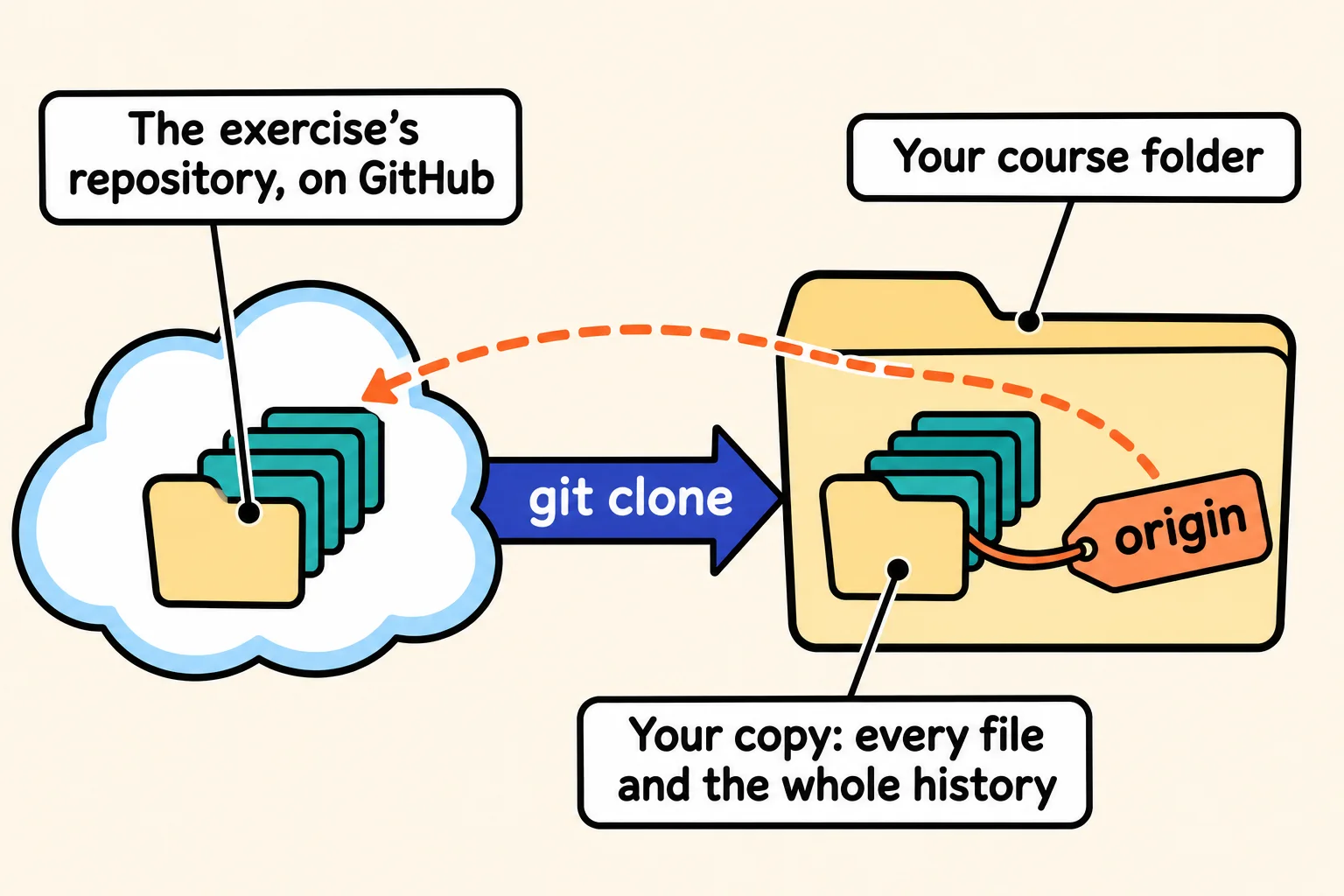
Clone it into your course folder
Every exercise lesson gives its repository's address, in its Get the exercise code section and in the Exercise box beside the lesson. On the repository's page on GitHub, the green Code button shows it too, under HTTPS. It ends in .git.
In VS Code's terminal (PowerShell on Windows, zsh on a Mac), go to your course folder, the one your course's setup lesson made, such as nodejs-course, and clone. The examples here use an exercise named exercise-first-steps; yours has its own name:
cd ~/nodejs-course
git clone https://github.com/ask-codey/exercise-first-steps.git
cd (change directory) moves the terminal into a folder, and ~ (read "tilde") is your home folder. Git prints Cloning into 'exercise-first-steps'..., then a few lines counting what it receives, and makes a new folder with the repository's name, inside the folder you're in. Clone once per exercise: after that, the folder is yours to work in.
Open it and look around
Choose File > Open Folder in VS Code and open the new folder, then open its terminal with Terminal > New Terminal. The terminal starts inside the exercise's folder, where its commands need to run. Read README.md first: it lists the files, says what to do, and names the command that checks your work (npm test in a Node course, pytest in a Python course).
Ask Git how things stand:
git status
On branch main
Your branch is up to date with 'origin/main'.

nothing to commit, working tree clean
On branch main means you're on the repository's main line of commits. Working tree clean means your files match the last commit: you haven't changed anything yet. Now ask where your copy came from:
git remote -v
origin	https://github.com/ask-codey/exercise-first-steps.git (fetch)
origin	https://github.com/ask-codey/exercise-first-steps.git (push)
A remote is a saved address of another copy of the repository, and -v shows the full address. Your clone has one, named origin, pointing at the repository you cloned. When you hand your work in, you'll point origin at a repository of your own: Hand In Your Work with Git shows how.
If something goes wrong
| What you see | What to do |
|---|---|
fatal: destination path 'exercise-first-steps' already exists and is not an empty directory. |
You cloned it already. Open that folder and work there. |
fatal: not a git repository (or any of the parent directories): .git |
The terminal isn't inside the exercise's folder. Open the folder with File > Open Folder, then open a new terminal. |
Repository not found, or a window asking you to sign in to GitHub |
The address has a typo, so GitHub can't find a public repository there. Close the window, then copy the address again from the exercise lesson or the Code button. |
The term 'git' is not recognized or command not found: git |
Git isn't installed, or VS Code was open while it installed. Close VS Code completely and open it again; if it still happens, go back to your course's Git setup lesson. |
Check yourself
2 questions to try on the lesson page.
So what
One git clone gets you an exercise's code, its history and a link back to where it came from, which is everything you need to start work, and half of what you need to hand it in.