Package Versions, npm ci and npm audit
A version range in package.json says which versions a project accepts, package-lock.json pins the exact ones installed, npm ci installs exactly those, and npm outdated, npm audit and npx check a project for updates, check it for security problems and run a package's command.
Apprentice · Node.js · JavaScript · Updated
After this lesson you can
- Read a version range such as ^4.4.0 or ~4.4.0 and say which versions it allows
- Explain how package-lock.json keeps every install the same, and choose between npm install and npm ci
- Read what npm outdated and npm audit report and choose the next step, and run a package's command with npx
Key takeaways
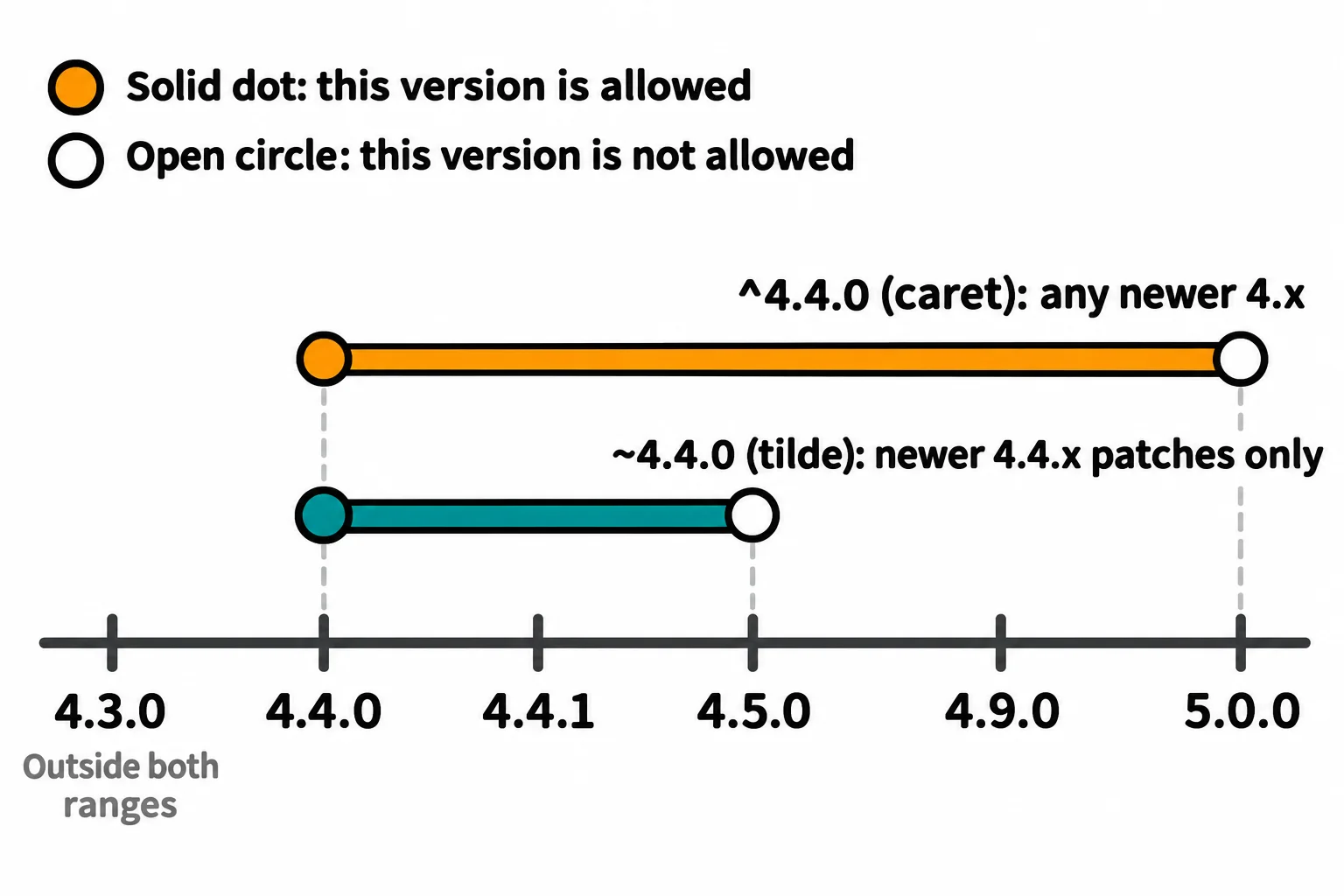
- A range in package.json says which versions a project accepts. ^4.4.0 (caret) allows any newer 4.x, ~4.4.0 (tilde) only newer 4.4.x patches, and 4.4.0 alone that exact version.
- package-lock.json records the exact version of every installed package, and npm install keeps to it, so everyone gets the versions the project was tested with.
- npm ci deletes node_modules and installs exactly what the lock file says. It stops with an error when package.json and the lock file disagree.
- npm outdated shows the installed, wanted and latest version of each package. npm update stays within your ranges, and a new major version is an update you choose on purpose.
- npm audit lists known security problems by how serious they are, and npm audit fix fixes what it can within your ranges. npx runs a command that comes with a package.
You clone a project that worked fine for a teammate, or for you a year ago, and run npm install. Will you get the same versions of its packages they had? And what should you do when npm ends with 1 critical severity vulnerability? Every team answers those questions before it ships, and so will you, in every project from here on: this lesson reads version numbers, keeps installs the same on every computer, and checks a project for updates and security problems.
What a range in package.json allows
Chapter Two Book Club's planner was set up a year ago. Its package.json doesn't list one exact version of each package. It lists a range, like a shopping list that says "any brand of flour" instead of one brand:
  "dependencies": {
    "date-fns": "^3.6.0",
    "minimist": "^1.2.5"
  }
npm and Packages showed what a version number means: a patch (4.4.1) fixes bugs, a minor version (4.5.0) adds features, and a major version (5.0.0) may change how things work. A range uses that promise to say which updates are safe to take:
| Range | Read aloud | Allows | Doesn't allow |
|---|---|---|---|
^4.4.0 |
"caret 4.4.0" | 4.4.1, 4.9.0: any newer 4.x | 5.0.0 |
~4.4.0 |
"tilde 4.4.0" | 4.4.1, 4.4.9: newer patches only | 4.5.0 |
4.4.0 |
"exactly 4.4.0" | 4.4.0 alone | 4.4.1 |
npm install date-fns writes a caret range. npm install date-fns@4.4.0 --save-exact writes the exact version.
The lock file decides, and npm ci follows it
A range allows many versions, so which one does a teammate get? package-lock.json answers that: it records the exact version that was installed. With a lock file, npm install installs the versions it records, even when a newer one fits the range. The club's lock file says minimist 1.2.5, so that's what everyone gets, although 1.2.8 fits ^1.2.5. The lock changes only when you add, remove or update a package.
npm ci (read "npm C I", short for clean install) goes further. It deletes node_modules, installs exactly what the lock file says, and never changes package.json or the lock file:
npm ci
added 2 packages, and audited 3 packages in 6s

1 package is looking for funding
  run `npm fund` for details

1 critical severity vulnerability

To address all issues, run:
  npm audit fix

Run `npm audit` for details.
The last lines count a security problem; the npm audit section below reads it. When the two files disagree, npm ci stops instead of guessing. Here date-fns was changed to ^4.4.0 in package.json by hand, with no install, and the error starts:
npm error `npm ci` can only install packages when your package.json and package-lock.json or npm-shrinkwrap.json are in sync. Please update your lock file with `npm install` before continuing.
npm error
npm error Invalid: lock file's date-fns@3.6.0 does not satisfy date-fns@4.4.0
Use npm install while you work on a project and add or change packages. Use npm ci for a fresh copy or a test machine, where you want exactly the versions the project was tested with: Tests on Every Push with GitHub Actions runs it on every push.
npm outdated: what's newer
npm outdated
Package   Current  Wanted  Latest  Location               Depended by
date-fns    3.6.0   3.6.0   4.4.0  node_modules/date-fns  book-club
minimist    1.2.5   1.2.8   1.2.8  node_modules/minimist  book-club
Current is what's installed, Wanted the newest version your range allows, and Latest the newest one published. For minimist, Wanted is newer, so npm update brings it up within its range. For date-fns, Latest is a new major version outside the range. That's a choice you make on purpose: read what changed in its release notes, run npm install date-fns@4, then run your tests.
npm audit: known security problems
After every install, npm counts known security problems, called vulnerabilities. npm audit lists them:
npm audit
# npm audit report

minimist  1.0.0 - 1.2.5
Severity: critical
Prototype Pollution in minimist - https://github.com/advisories/GHSA-xvch-5gv4-984h
fix available via `npm audit fix`
node_modules/minimist

1 critical severity vulnerability

To address all issues, run:
  npm audit fix
Read it top to bottom: the package, the versions affected, how serious it is (low, moderate, high or critical), and whether a fix exists. Then:
- Run
npm audit fix. It updates within your ranges, here minimist to 1.2.8, and npm ends withfound 0 vulnerabilities. Run your tests after. - A fix that needs a new major version is offered as
npm audit fix --force. Treat it like any major update: read what changed, update, test. - No fix yet?
npm audit --omit=devleaves out devDependencies, which never run in your app. If the problem is in a package your app runs, look for another package that does the job.
npx: run a package's command
Some packages come with a command. semver, the package npm itself uses to read ranges, has one that checks a range for you. Install it as a devDependency:
npm install --save-dev semver
npx (read "en-pee-ex") runs a command from a package in node_modules:
npx semver --range "^4.4.0" 4.3.0 4.4.1 4.9.0 5.0.0
4.4.1
4.9.0
It prints the versions the range allows, as the table showed. With "~4.4.0", it prints only 4.4.1. When a package isn't installed, npx offers to download it first, and asks before it does.
Check yourself
2 questions to try on the lesson page.
So what
Ranges, the lock file, npm ci, npm outdated and npm audit are how a team keeps every computer on the same tested versions and its packages up to date and safe, and now you can read and run each one.