Working with Git: an overview
Git moves your code between GitHub and your computer in three steps, clone, commit and push, and this topic shows you each one.
Novice · Software Development · Git · Updated
After this lesson you can
- Explain what clone, commit and push each do as your code moves between GitHub and your computer
Key takeaways
- Clone copies a repository from GitHub to your computer, with all of its history.
- A commit saves a snapshot of your changes, with a message, in the repository on your computer.
- Push sends your new commits from your computer up to GitHub. Until you push, they are only on your computer.
- You use Git to get practice code and to back up your own work on GitHub.
Think of a document you have saved as essay.docx, then essay-final.docx, then essay-final-2.docx. A week later, you can't remember what changed in each copy, or which one you emailed to a friend. Developers had the same problem with code, and Git solves it: it keeps one copy of your files, plus a history of every change you saved.
You installed Git and created a GitHub account in the Setup lessons. In this topic you learn how to use them together.
Repositories: a project and its history
Git keeps a project in a repository (a "repo"): a folder of files, plus the history of every change saved in it. A repository can live in two places:
- On your computer, where you write and run the code.
- On GitHub, a website that keeps a copy of the repository online, so it is backed up and other people can get it.
Three Git words describe how your code moves between the two.
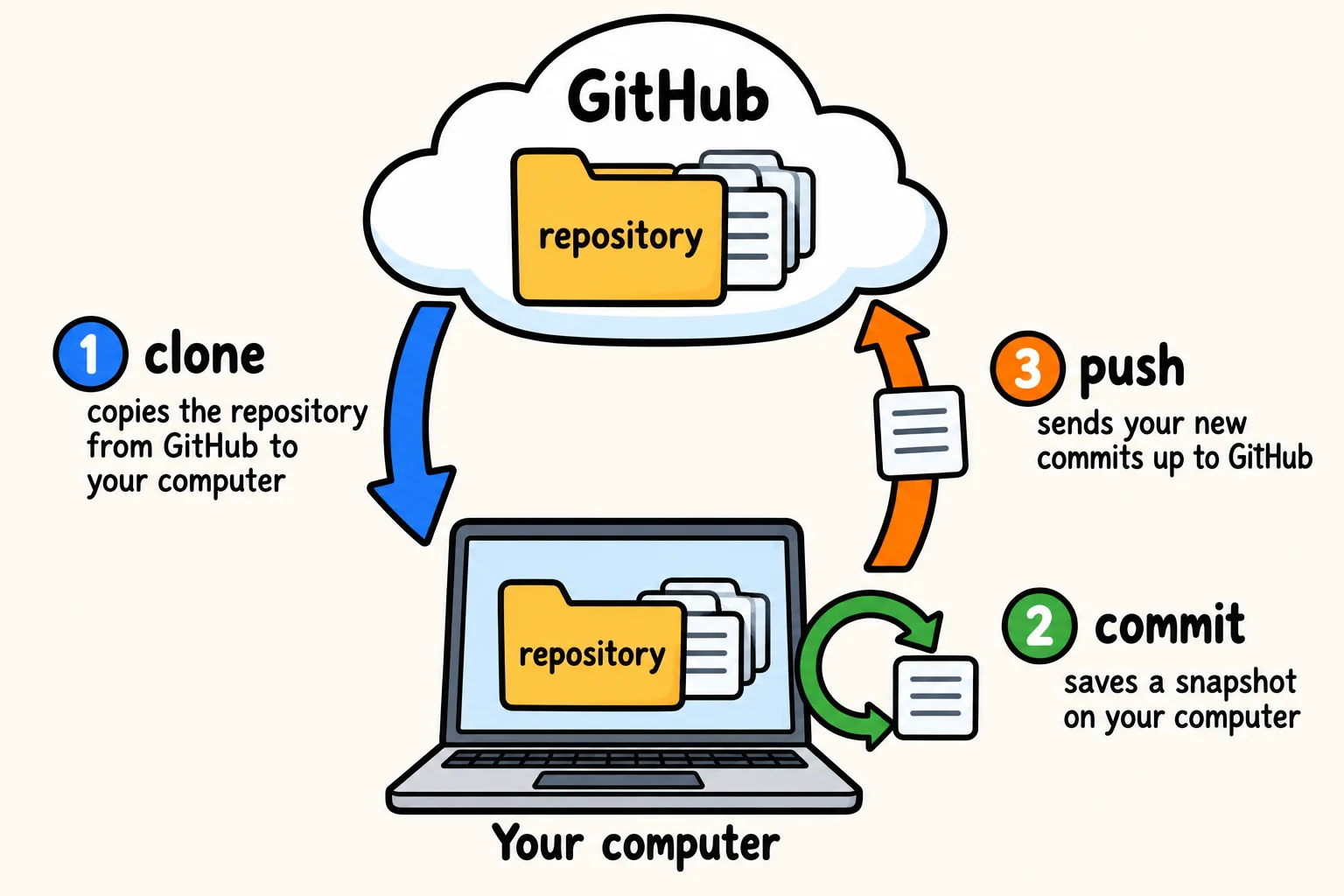
Clone: get a copy
To clone a repository is to copy it from GitHub to your computer: every file, and the whole history. You clone once, at the start. After that, the copy on your computer is yours to work in.
Commit: save a snapshot
When you have finished a piece of work, you commit it. A commit saves a snapshot of the changes you chose, with a short message that says what you did, such as add the sign-in page. The commit is saved in the repository on your computer only. Nothing goes to GitHub yet.
Each commit is a point in the history you can look back at, or go back to.
Push: send it to GitHub
To push is to send your new commits from your computer up to GitHub. Once they are there, your work is backed up, and anyone who can see the repository can see your changes.
So the order is: clone once, then commit and push as you go. You can commit several times and push them all at once. When someone else pushes to the same repository, git pull brings their commits down to your computer. The lesson Git Workflow shows it.
How you will use Git in this course
- Each practice exercise has its starter code in a repository on GitHub. You can clone it, or download it as a ZIP file.
- You keep your own work in your own repositories on GitHub. Commit when a piece of work runs, and push often, so your work is safe even if your computer isn't.
Here is what comes next in this topic:
- What is Version Control? explains what tools like Git do, and how Git differs from GitHub.
- Git Workflow walks you through creating a repository on GitHub, cloning it, and committing and pushing your changes, one command at a time.
Try it. Open github.com/git/git/commits in your web browser: the history of Git itself, which is kept with Git. Each line is one commit. Find its message, who made it, and when.
Check yourself
2 questions to try on the lesson page.
So what
Clone, commit and push are the three steps you will repeat most as a developer: get the code, save your work, and share it.