Using Your Module in a Notebook: autoreload
A notebook can import functions from your own .py file, but the kernel keeps the version it imported first, so after editing the file you restart the kernel and run every cell, or turn on %load_ext autoreload and %autoreload 2 to load each saved change before every cell runs.
Journeyman · Python · Updated
After this lesson you can
- Import your own module into a notebook, and explain why the kernel keeps the old version after you edit the file
- Load an edited module again with %load_ext autoreload and %autoreload 2, or by restarting the kernel and running every cell
Key takeaways
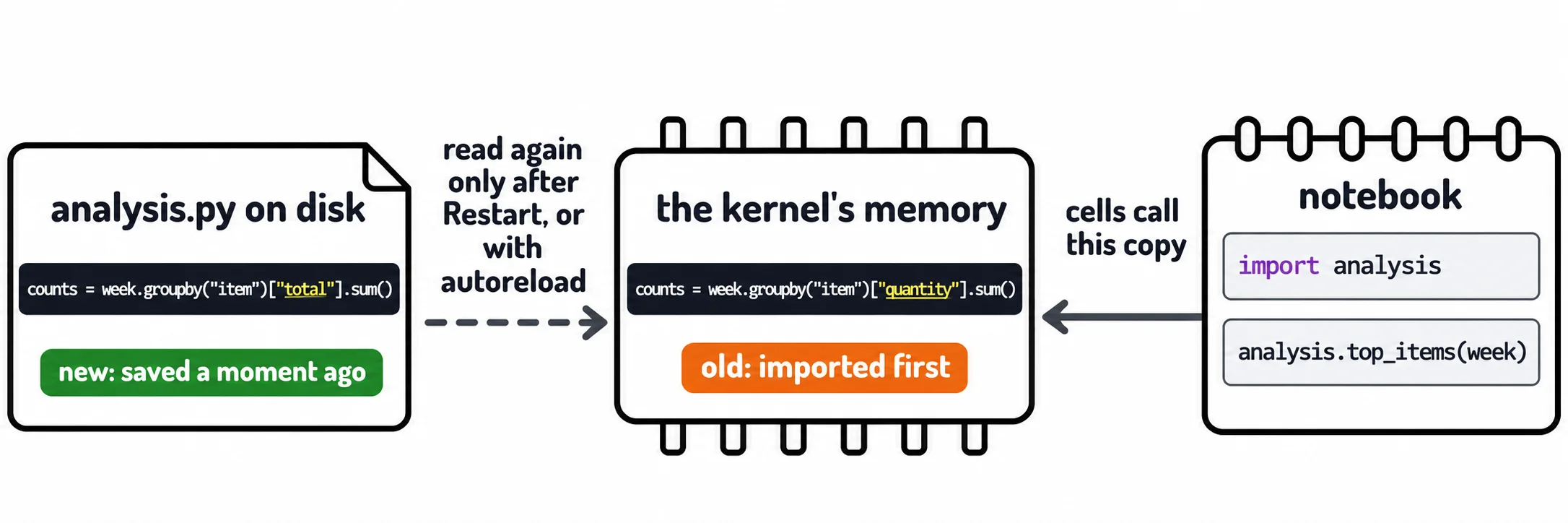
- import analysis in a notebook runs analysis.py once and keeps that copy in the kernel's memory. Running the import again doesn't read the file again.
- After you edit and save the module, Restart and Run All always gives the new version.
- %load_ext autoreload and %autoreload 2 in the first cell make the kernel reload a changed module before every cell runs.
- Autoreload changes functions, not results. A table made by the old code stays as it was until you rerun the cell that made it.
- Lines that start with % are magic commands for the notebook's kernel, not Python, so they never go in a .py file.
Once your functions live in a .py file, the notebook becomes the place where you try them on real data, and the file the place where you change them. That's how most analysts work: explore in the notebook, keep the code that works in a module. It has one trap that confuses nearly everyone the first time. You fix a function, run the cell again, and the old answer comes back.
The example is the Greenway Food Truck's weekly sales, data/incoming/week-2026-10-26.csv and the weeks before it: one row per sale, with item, quantity, price and the rest.
The functions move into analysis.py
The food truck's functions now sit in a file of their own, analysis.py, next to the notebook. A module is a .py file whose functions other code can use (Your Own Modules and Packages shows how they work):
import pandas as pd


def load_week(path):
    week = pd.read_csv(path)
    week["total"] = week["quantity"] * week["price"]
    return week


def top_items(week, n=3):
    counts = week.groupby("item")["quantity"].sum()
    return counts.sort_values(ascending=False).head(n)
The notebook imports it by its file name, without .py, and calls each function by analysis. and its name:
import analysis

week = analysis.load_week("data/incoming/week-2026-10-26.csv")
analysis.top_items(week)
item
Street Tacos    173
Burrito Bowl    118
Loaded Fries     81
Name: quantity, dtype: int64
You edit the file, and nothing changes
Dana, the truck's owner, asks a new question: which items bring in the most money, not the most orders? In analysis.py you change one word in top_items, "quantity" to "total", and save the file:
counts = week.groupby("item")["total"].sum()
Back in the notebook you run the cell again:
analysis.top_items(week)
item
Street Tacos    173
Burrito Bowl    118
Loaded Fries     81
Name: quantity, dtype: int64
The old answer: Name: quantity gives it away. Running import analysis again doesn't help either; it shows the same table. Here's why. The first import analysis read the file and kept the module in the kernel's memory, the running Python behind the notebook. Every later import analysis finds the module already in memory and uses that copy, without looking at the file. The file on disk has the new version; the kernel still has the old one.
Restart: the sure fix
The fix that always works is the one The Kernel: Why Run Order Matters teaches: Restart the kernel (in the notebook's toolbar), then Run All. A new kernel has nothing in memory, so its import analysis reads the file you saved:
import analysis

week = analysis.load_week("data/incoming/week-2026-10-26.csv")
analysis.top_items(week)
item
Street Tacos    1557.0
Burrito Bowl    1357.0
Quesadilla       654.5
Name: total, dtype: float64
Now Quesadilla is third: it earns more than Loaded Fries even though fewer sold. Restarting is safe and certain, but every cell runs again, which takes a while on a big file.
autoreload: reload before every cell
A notebook can do the reloading for you. Put these two lines in its first cell:
%load_ext autoreload
%autoreload 2
Read them "percent load ext autoreload" and "percent autoreload two". Lines that start with % are magic commands: instructions to the notebook's kernel, not Python. The first loads the kernel's autoreload tool; the second, with 2, tells it to check every module you imported before each cell runs, and reload any file that changed since. With them on, changing "quantity" to "total" and saving is enough: the next run of analysis.top_items(week) shows the table by money, with no restart.
Two things autoreload doesn't do. It reloads functions, not results: a table made by the old code stays as it was. Say you change load_week to read sold_at as dates with parse_dates=["sold_at"]. The week you already have still holds text, until you rerun the cell that made it:
print(week["sold_at"].dtype)
str
week = analysis.load_week("data/incoming/week-2026-10-26.csv")
print(week["sold_at"].dtype)
datetime64[us]
And magic commands work only in a notebook. In a .py file, %autoreload 2 stops Python before it starts, with SyntaxError: invalid syntax.
Which one to use
Turn autoreload on in the first cell of a notebook you use for working on a module, as most analysts do. Restart and Run All before you trust a result or share the notebook, so you know every number came from the code as it is now.
Check yourself
2 questions to try on the lesson page.
So what
A notebook remembers the module it imported first, so after you edit the file, either autoreload or a restart is what makes the notebook use the code you saved.